Creating websites using Canva is one of the most user-friendly and easiest ways to get your website up and running. However, it still got its limitations – and one is it lacks backend capabilities specifically running and processing contact forms. Having a contact form in your website is very essential so visitors and clients have a way to connect to you easier using email.
To address this website backend limitation, Canva relies on third-party apps and providers such as Google Forms, Jotform, FluidForms, Weavly, and many others which will allow you to embed and add to your designs in your Canva website.
However, as per experience, FluidForms is probably the simplest and easiest way to add a Contact Form in your Canva website design.
Following is a tutorial on how you can easily add your own contact form in your Canva website design:
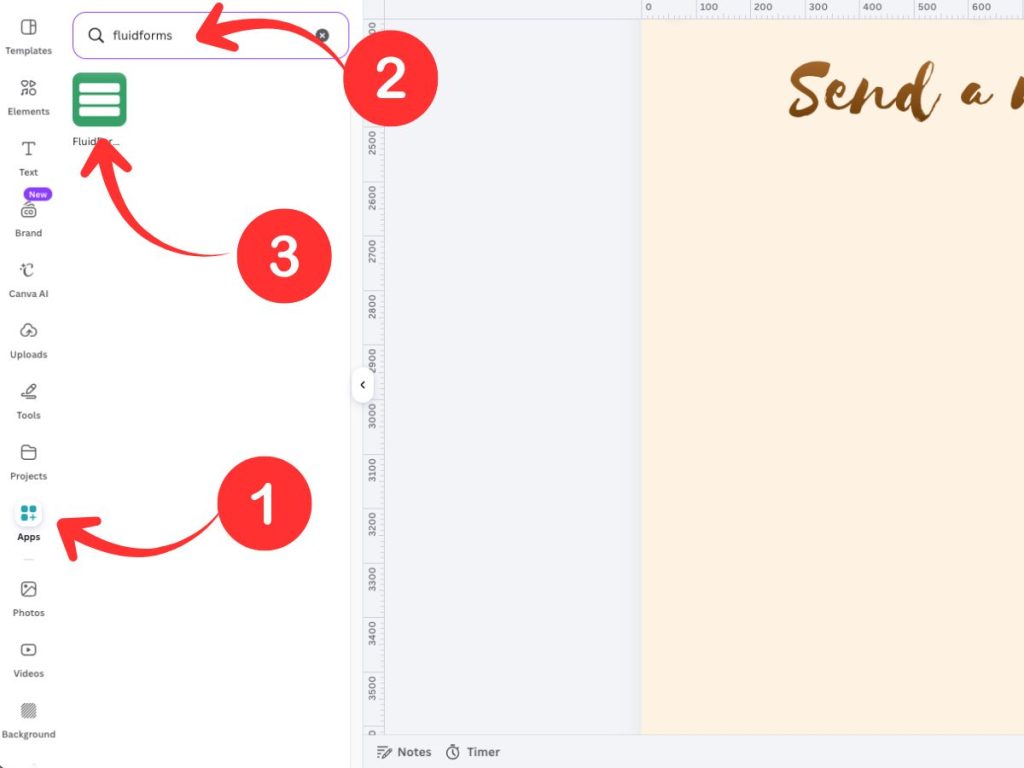
4. Under “Settings”, input the name of your form and Response destination – here you must enter your email address as destination for all input submissions from the contact form.
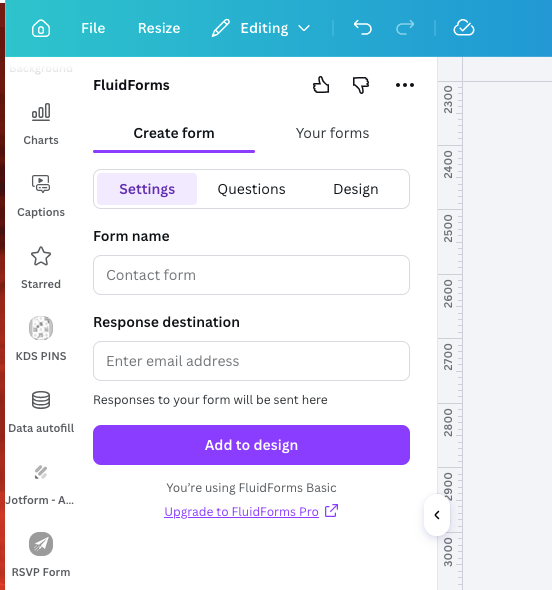
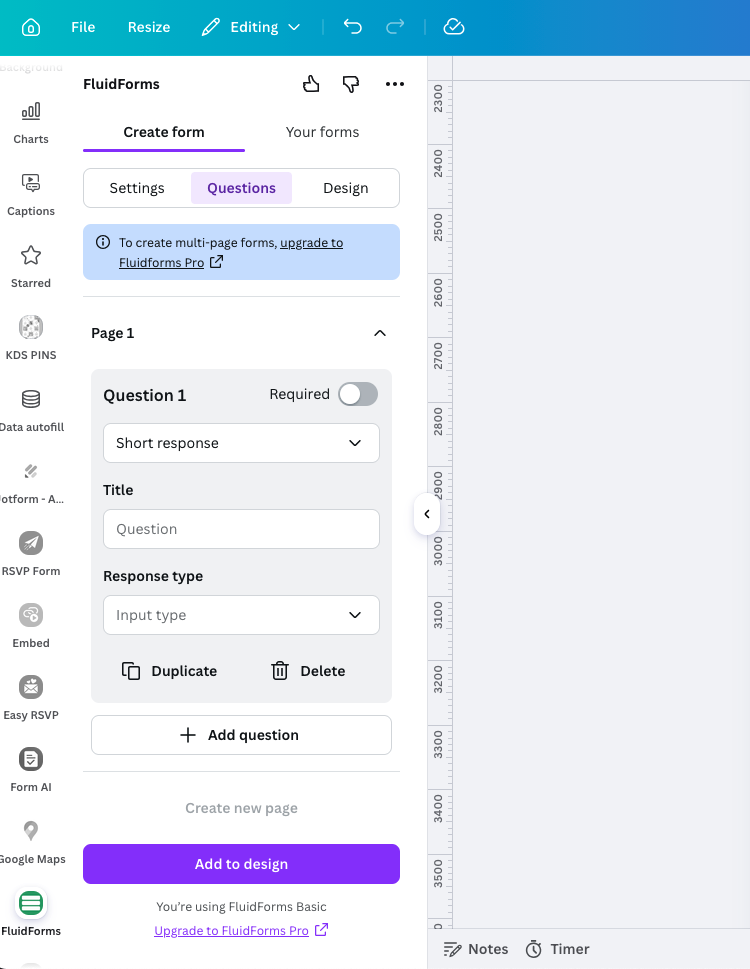
5. Under “Questions”, You can add the fields you require in your contact form (e.g. Name, Email Address, Phone #, Subject, Message, etc).
6. After all is set, click on “Add to design” so the contact form will be added in your Canva website. Drag, adjust size to your liking then you’re done!
7. Don’t forget to test the contact form! You can preview your website design, input details in your contact form, click on Submit. Shortly, you will receive an email that you used as your Response destination in step 4. If you didn’t receive any email, check on the Response destination or checking your spam folder in your email.
There are a few third-party apps that you can use to create your forms but here are some reasons why I prefer using FluidForms:
Just like other third-party apps that you can use to create contact forms in your Canva website, FluidForms also have its limitations UNLESS you choose to upgrade to FluidForms Pro.
So that’s it! I hope I’m able to help you in adding a contact form in your Canva website designs. Happy designing!
Where Creativity Meets Simplicity - Customize with Ease! Forget about Coding and Enjoy Designing Your Website.